
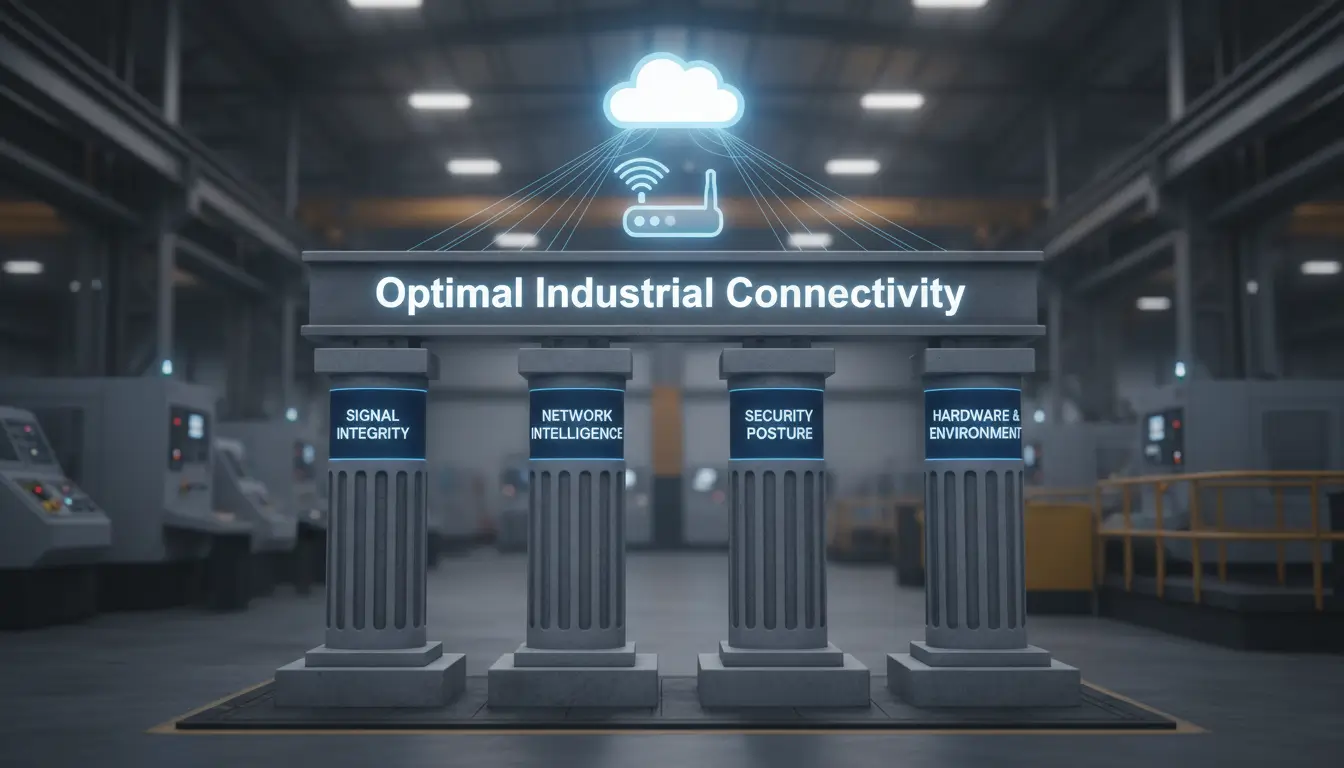
If you have just wired up an industrial cellular router, logged into the dashboard, and seen the green “Connected” light, you might assume the deployment is complete. This assumption is the leading cause of network failures in Operational Technology (OT).
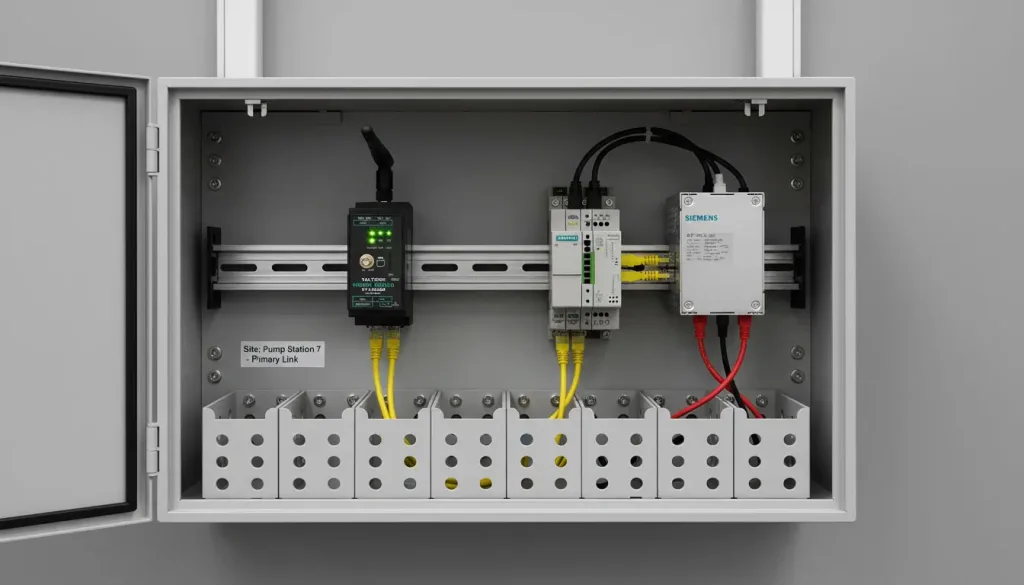
If you are searching for exactly how to configure an industrial cellular router for optimal performance, you are in the right place. This guide is not a basic user manual. It is a “Pilot’s Checklist” engineered for field technicians. Proper industrial router configuration is the only barrier between a stable SCADA network and a frantic 3 AM truck roll to manually reboot a frozen device at a remote pump station.
We will walk thru the exact sequential phases to set up your hardware, starting from avoiding the first APN pitfalls, configuring VLAN segregation, to setting up unbreakable IPsec VPN tunnels.
Before leaving the remote site, interact with this pre-flight checklist to ensure your device is immune to the most common causes of operational downtime.
- Phase 1: The Basics (Getting Online Without the Headaches)
- Phase 2: Preventing the 3 AM Truck Roll (Connection Resilience)
- Phase 3: IT Integration and Traffic Segregation (VLANs)
- Phase 4: Securing the OT Edge (Port Forwarding and Firewalling)
- Phase 5: The IPsec VPN (The Secure Traffic Director)
- Configuration FAQs & Troubleshooting
Phase 1: The Basics (Getting Online Without the Headaches)
The majority of field connectivity issues stem from the very first physical and logical steps. You must secure the base layer before deploying complex tunnels.
Public vs. Private SIMs (And Why It Matters)
Before initiating proper sim activation for industrial routers, you need to have a basic understanding of your IP architecture. For consumer smartphones, SIM cards, Carrier Grade NAT (CGNAT) is the standard. That is, the ISP assigns your router a dynamic private IP address (10.x.x.x for example) that is shared by thousands of users, and refuses all inbound connection attempts.
If your topology requires a central SCADA server that actively polls remote PLCs, a consumer SIM will fail instantly. You will need to provision a dedicated M2M (Machine-to-Machine) SIM card that provides a Static Public IP, or runs within a custom Private APN tunnel provided by your telecom carrier.
The APN Trap
A frequent error is inserting the SIM and assuming the router will automatically negotiate the correct carrier settings. While consumer devices guess the APN, successful apn configuration industrial network deployments require manual precision. If your router connects but cannot pass data, it has fallen into the APN trap.
To configure this correctly (referencing the Valtoris VT-LTE400 UI):
- Log into the Web UI (Default IP: 192.168.8.1). Note: There is no default password out of the box, simply click login to access the configuration page.
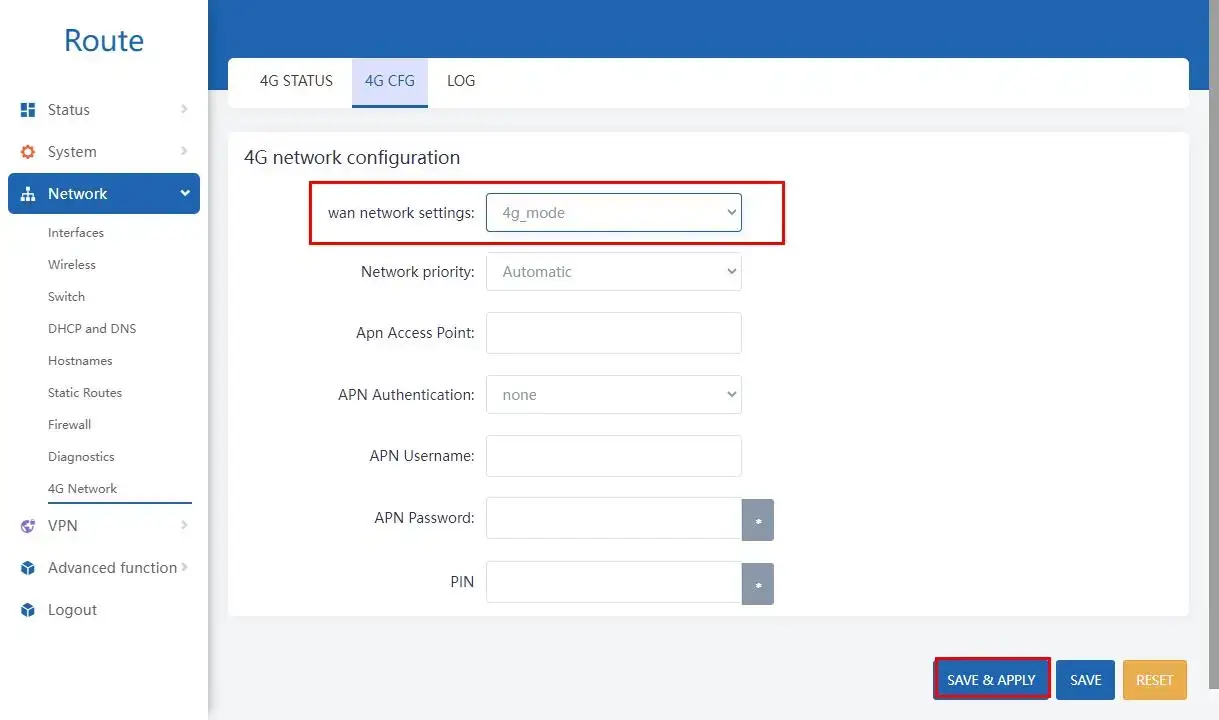
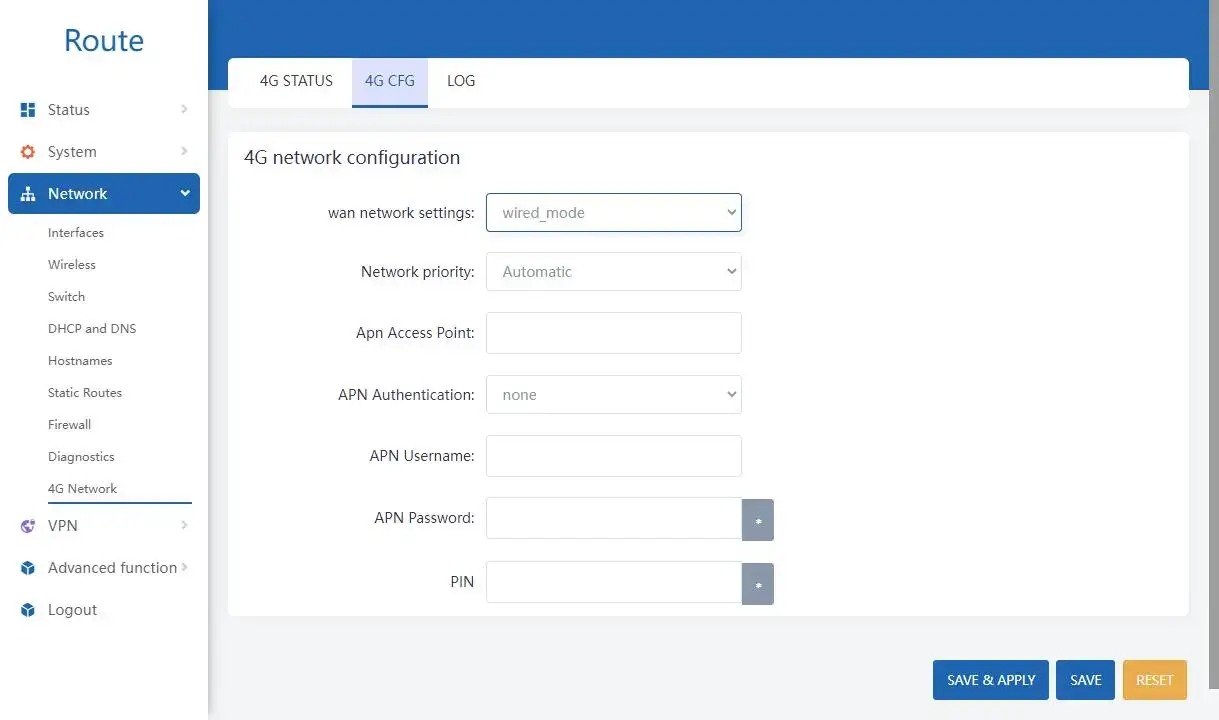
- Navigate to the left menu bar: Network -> 4G Network -> 4G CFG.
- Locate the Apn Access Point field. Instead of relying on automatic detection, manually enter the specific M2M APN string provided by your carrier (e.g., m2m.t-mobile.com or a custom corporate APN).
- Enter the specific APN Authentication parameters (CHAP/PAP), username and password if required by your carrier’s IoT contract.
Phase 2: Preventing the 3 AM Truck Roll (Connection Resilience)
The cellular network is naturally chaotic. If the carrier connection stalls for any length of time, a consumer router will hang until a human physically unplugs it. Real industrial hardware avoids this by using smart failover protocols.
Setting Up Smart Multi-WAN Failover Priorities
If your remote site has a terrestrial wired connection (e.g., fiber or DSL) and uses cellular as a backup, clumsy switching logic will cause more downtime than it prevents. The VT-LTE400 allows you to dictate exactly how the device handles routing priorities.
- Wired Priority Mode: If your facility relies on a fast broadband connection, navigate to Network -> 4G Network -> 4G CFG and set the wan network settings to wired_mode. The router will prefer the physical wan port and will dial the 4G modem only if the terrestrial line fails.
- 4G Priority Mode: If you are using the router at a remote solar farm with no physical internet lines, you can configure the wan network settings to 4g mode. This tells the device to aggressively keep the cellular PDP context alive as its primary lifeline to the internet.
Signal Optimization: RSRP vs. SINR
Most technicians look at the “Signal Bars” (RSSI) on the dashboard and walk away. Signal quantity does not equal signal quality. You can have full bars and zero data throughput if the noise floor in your factory is too high. You must look at RSRP (Reference Signal Received Power) and SINR (Signal-to-Interference-plus-Noise Ratio).
If your SINR is hovering near 0 dB, your telemetry packets are fighting massive interference. You must utilize the dual SMA antenna interfaces on the router to install high-gain directional antennas mounted outside the metal control panel.

Enabling the ICMP Ping Watchdog (Auto-Recovery)
Even with great signal, cellular base stations can silently drop contexts. To prevent permanent lockups, you must configure the router to actively test its connection and autonomously recover if data stops flowing.
- Navigate to the router’s advanced network settings or diagnostic tools.
- Locate the ICMP Watchdog / Connection Monitoring feature.
- Set the target address to a reliable external server (e.g., 8.8.8.8) and configure a ping interval (e.g., 60 seconds). If the pings fail consecutively, the router will automatically reset the modem, ensuring self-recovery at remote sites without a truck roll.
Phase 3: IT Integration and Traffic Segregation (VLANs)
If you have multiple devices in the same control cabinet (e.g. sensitive PLCs, local HMIs, or SCADA RTUs), you cannot have them sharing the same broadcast domain. For proper handling of industrial routers, proper segregation of traffic using VLANs (Virtual Local Area Networks) is required.
Configuring the Internal Switch for VLANs
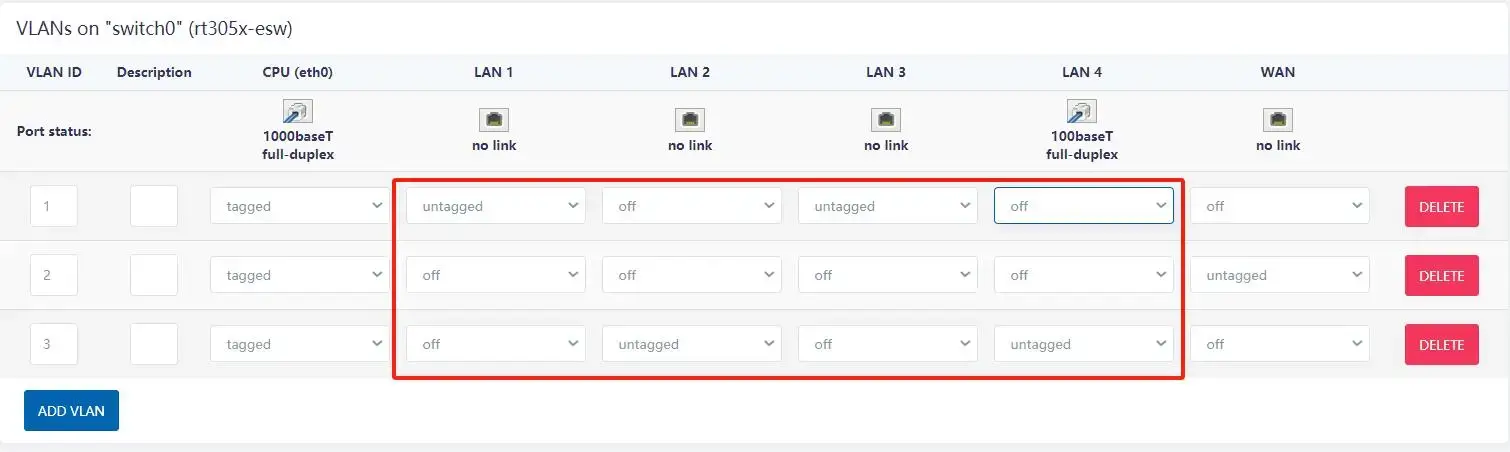
The VT-LTE400 features a highly configurable internal switch. By default, LAN ports 1-4 belong to VLAN ID1. We will segregate LAN 1 and 3 for PLC control traffic, and LAN 2 and 4 for local HMIs or non-critical maintenance access.
- Navigate to Network -> Switch.
- To create a new VLAN (e.g., VLAN ID3), click Add VLAN.
- Set the port status for LAN 2 and LAN 4 to untagged for VLAN ID3. Ensure these ports are set to off on the original VLAN ID1 to prevent cross-talk.
- Set the CPU (eth0) port to tagged for both VLANs so the router can process traffic for both subnets. Click Save & Apply.
Assigning Interfaces and DHCP to the New VLAN
Once the switch is physically partitioned, you must assign a logical IP subnet to the new VLAN.
- Navigate to Network -> Interfaces and click Add New Interface.
- Name the interface (e.g., VLAN3), set the protocol to Static address, and select the device Switch VLAN: “eth0.3”.
- In the General Settings, assign a distinct IPv4 address (e.g., 192.168.10.1) and subnet mask.
- Navigate to the Firewall Settings tab and create a custom firewall zone for this VLAN to govern how it interacts with the WAN. Finally, enable the DHCP Server on this interface so your maintenance laptops or HMIs automatically receive addresses in the 192.168.10.x range (Note: ensure you configure a specific lease range to avoid conflicts).
Phase 4: Securing the OT Edge (Port Forwarding and Firewalling)
When you utilize an M2M SIM card with a Static Public IP, your router is visible to the entire internet. Automated botnets scanning for open ports will find your device within minutes. You must build a moat.
Implementing Port Forwarding (NAT)
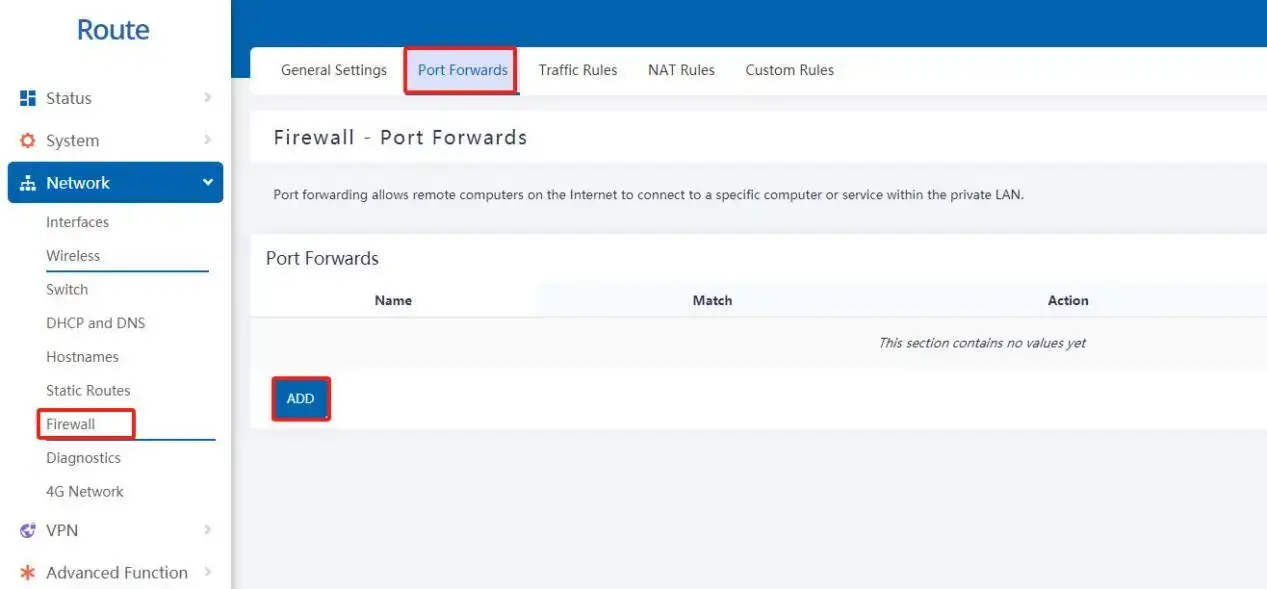
Port forwarding allows remote computers on the internet to connect to a specific PLC inside your isolated LAN. When IP addresses are limited, the VT-LTE400 can map specific external ports to internal devices.
- Crucial Prerequisite: Navigate to Network -> Interfaces, select the WAN port, and change the Protocol from DHCP client to Static address. Port forwarding requires a fixed WAN IP.
- Navigate to Network -> Firewall -> Port Forwards and click Add.
- Define a Name (e.g., PLC_Access) and select the Protocol (TCP or UDP).
- Set the Source zone to wan, and define the External port (e.g., 5020).
- Set the Destination zone to lan, enter the Internal IP address of your PLC (e.g., 192.168.1.12), and specify the standard Internal port (e.g., 502 for Modbus).
Phase 5: The IPsec VPN (The Secure Traffic Director)
If you want to know how to configure an industrial router for optimal data transmission securely, you must master the VPN tunnel. The VT-LTE400 natively supports enterprise-grade L2TP/IPSec protocols to encrypt data before it traverses the public cellular network.
Configuring IPsec Parameters
Navigate to VPN -> L2TP/IPSec VPN -> IPSec VPN. Here is the blueprint for establishing a military-grade, stable connection to your Headquarters:
| IPsec Parameter | Recommended Configuration | Engineering Rationale |
|---|---|---|
| IKE Version | IKEv2 (If supported by HQ) | Provides faster negotiation and superior resilience during temporary cellular drops compared to older protocols. |
| Mode | Tunnel | Tunnel mode encrypts the entire IP packet (including headers), providing the highest level of security for site-to-site OT networks. |
| Phase 1 (IKE) Encryption | AES-128 or AES-256 | AES-128 is highly efficient and lowers CPU overhead. Use AES-256 if strict corporate IT compliance mandates it. |
| IKE Authentication (Hash) | SHA1 or SHA256 | Ensures data integrity during the key exchange phase. SHA256 is the modern standard. |
| DPD (Dead Peer Detection) Time Interval | 30 Seconds | Actively monitors the VPN tunnel. If the Headquarters server drops, the router detects the failure quickly. |
| DPD Timeout & Action | 120s / Auto-Reconnect | If no response is received for 120 seconds, the router autonomously clears the broken SA (Security Association) and attempts to re-dial the tunnel. |
⚠️ The MTU Fragmentation Warning: When configuring your VPN, note that cellular networks use 3GPP GTP tunneling. Adding IPsec cryptographic headers to normal 1500-byte packets will result in severe packet fragmentation over the air. When polling low-latency PLCs, always make sure your network endpoints negotiate a lower MTU/MSS (e.g. 1350 bytes) to avoid timeouts.
Deploy Reliable OT Networks (Without the Engineering Headaches)
You shouldn’t have to spend hours fighting with consumer-grade hardware or writing custom scripts just to keep a remote PLC online. Introducing the Valtoris VT-LTE400. A completely pure, uncompromising industrial cellular router with native IPsec engines, advanced VLAN switching and no mandatory cloud subscription fees.
Review the VT-LTE400 Engineering SpecsConfiguration FAQs & Troubleshooting
Why can’t I remotely access my PLC behind the cellular router even though it has internet access?
A: This is almost always due to CGNAT (Carrier-Grade NAT). Most consumer cellular carriers assign your router a private, non-routable IP address, which blocks inbound traffic. To remotely access your SCADA systems, you must either request a Static Public IP from your carrier (usually via an M2M data plan) or configure the router to establish an outbound VPN tunnel (like IPsec) to your central server.
Can I use a standard smartphone SIM card in an industrial router?
A: Technically yes, but it’s highly discouraged. Consumer SIMs are generally subject to roaming restrictions, dynamic IPs and terms of service that explicitly forbid continuous machine-to-machine (M2M) polling. Using dedicated IoT/M2M SIM cards and custom APNs for industrial automation is essential to keep data flowing and avoid being blocked by carriers without prior notice.
Does enabling the ICMP Ping Watchdog consume a large portion of my limited M2M data plan?
A: While ICMP pings are essential for auto-reboot and failover logic, they do consume background data. Pinging an external server like 8.8.8.8 every 10 seconds can use approximately 15MB to 30MB of data per month. If your M2M plan is strictly capped (e.g., 50MB/month), we recommend increasing the ping interval to 60 seconds to significantly reduce cellular overhead while still maintaining reliable connection monitoring.
Should I configure my downstream PLCs and HMIs with Static IPs, or use the router’s DHCP server?
A: For mission-critical OT networks, you must always assign Static IPs to your downstream PLCs, HMIs, and SCADA RTUs. Relying on DHCP can cause IP addresses to change after a power cycle, which will instantly break your Port Forwarding rules and SCADA polling pathways. Only use the router’s DHCP server for temporary maintenance laptops or non-critical IP cameras on an isolated VLAN.
How does Dead Peer Detection (DPD) improve IPsec VPN reliability on a 4G connection?
A: Dead Peer Detection (DPD) is a mechanism to determine if the VPN peer (e.g. your HQ firewall) is still up. In a cellular environment where connections can die silently, a DPD enabled router will not route data into a dead tunnel. If no response is received within the configured DPD Timeout (e.g. 120 seconds), the router will automatically clear the connection and attempt to auto-reconnect, minimizing downtime.